

普罗米修斯监控主机
前提: 执行脚本安装相关服务
在监控主机上执行脚本1,脚本2
在被监控主机行执行脚本2,安装node_export即可
脚本1:instal-prometheus-server.sh
#!/bin/bash
# Description: Automated deployment script for Prometheus Server
# Target OS: RHEL 8/9 / CentOS Stream

VERSION=3.13.4
ARCH=amd64
SOFTWARE=prometheus-${VERSION}.linux-${ARCH}.tar.gz

URL="https://github.com/prometheus/prometheus/releases/download/v${VERSION}/prometheus-${VERSION}.linux-amd64.tar.gz"

DOWNLOAD=./download
INSTALLDIR=/opt/prometheus
BASEDIR=${INSTALLDIR}/prometheus-${VERSION}.linux-${ARCH}
DATADIR=/var/lib/prometheus/data
LOGDIR=/var/log/prometheus
HOSTIP=0.0.0.0
PORT=9090
HOSTNAME=$(hostname)

function prepare() {
  # 创建所需目录
  install -d "${INSTALLDIR}" "${DOWNLOAD}" "${DATADIR}" "${LOGDIR}"

  # 检查并安装 wget 工具(兼容 RHEL 系列)
  if ! command -v wget >/dev/null 2>&1; then
    dnf -y install wget || yum -y install wget
  fi

  # 检查软件包,不存在则拉取
  [ -s "${DOWNLOAD}/${SOFTWARE}" ] || wget "${URL}" -O "${DOWNLOAD}/${SOFTWARE}"
}

function deploy() {
  prepare

  # 解压软件包至安装目录
  tar xf "${DOWNLOAD}/${SOFTWARE}" -C "${INSTALLDIR}"

  # 生成 systemd 单元配置文件
  cat > /etc/systemd/system/prometheus-server.service <<EOF
[Unit]
Description=Prometheus Monitoring Server
Documentation=https://prometheus.io/docs/introduction/overview/
After=network.target

[Service]
Type=simple
Restart=on-failure
ExecStart=/bin/bash -c "${BASEDIR}/prometheus \
    --config.file=${BASEDIR}/prometheus.yml \
    --web.enable-lifecycle \
    --storage.tsdb.path=${DATADIR} \
    --storage.tsdb.retention.time=60d \
    --web.listen-address=${HOSTIP}:${PORT} \
    --web.max-connections=65535 \
    --storage.tsdb.retention.size=512MB \
    --query.timeout=10s \
    --query.max-concurrency=20 \
    --log.level=info \
    --log.format=json \
    --web.read-timeout=5m &>> ${LOGDIR}/prometheus-server.log"
ExecReload=/bin/kill -HUP \$MAINPID
LimitNOFILE=65535

[Install]
WantedBy=multi-user.target
EOF

  # 重载配置并启动服务
  systemctl daemon-reload
  systemctl enable --now prometheus-server.service

  # 验证端口监听状态
  sleep 1
  ss -ntl | grep -w "${PORT}"
}

function delete() {
  systemctl disable --now prometheus-server.service 2>/dev/null
  # 修复原脚本把清理文件名写成 node-exporter 的错误
  rm -rf /etc/systemd/system/prometheus-server.service "${BASEDIR}" "${DATADIR}" "${LOGDIR}"
  systemctl daemon-reload
}

function main() {
  case $1 in
    deploy|i)
      deploy
      echo "[SUCCESS] Prometheus server deployed successfully on ${HOSTNAME}."
      ;;
    delete|r)
      delete
      echo "[SUCCESS] Prometheus server uninstalled successfully."
      ;;
    *)
      echo "Usage: $0 {deploy|i|delete|r}"
      exit 1
      ;;
  esac
}

main "$1"
脚本2:install-node-exporter.sh
#!/bin/bash
# Description: Automated deployment script for Node Exporter
# Target OS: RHEL 8/9 / CentOS Stream

VERSION=1.12.1
ARCH=amd64
SOFTWARE=node_exporter-${VERSION}.linux-${ARCH}.tar.gz

URL="https://github.com/prometheus/node_exporter/releases/download/v${VERSION}/node_exporter-${VERSION}.linux-amd64.tar.gz"

DOWNLOAD=./download
INSTALLDIR=/opt/prometheus
BASEDIR=${INSTALLDIR}/node_exporter-${VERSION}.linux-${ARCH}
HOST="0.0.0.0"
PORT=9100
HOSTNAME=$(hostname)

function prepare() {
  # 规范创建目录
  install -d "${INSTALLDIR}" "${DOWNLOAD}"

  # 检查并安装 wget 工具(兼容 RHEL 系列,放弃冗余的发行版判断)
  if ! command -v wget >/dev/null 2>&1; then
    dnf -y install wget || yum -y install wget
  fi

  # 判断安装包是否存在且非空,不存在则拉取
  [ -s "${DOWNLOAD}/${SOFTWARE}" ] || wget "${URL}" -O "${DOWNLOAD}/${SOFTWARE}"
}

function install_exporter() {
  # 检查环境并准备文件
  prepare

  # 解压软件包
  tar xf "${DOWNLOAD}/${SOFTWARE}" -C "${INSTALLDIR}"

  # 生成 systemd 单元文件
  cat > /etc/systemd/system/node-exporter.service <<EOF
[Unit]
Description=Prometheus Node Exporter
Documentation=https://prometheus.io/docs/guides/node-exporter/
After=network.target

[Service]
Type=simple
Restart=on-failure
ExecStart=${BASEDIR}/node_exporter \
  --web.telemetry-path="/metrics" \
  --web.listen-address=${HOST}:${PORT}
LimitNOFILE=65535

[Install]
WantedBy=multi-user.target
EOF

  # 重载配置并启动服务
  systemctl daemon-reload
  systemctl enable --now node-exporter.service

  # 验证端口状态(改用变量匹配)
  sleep 1
  ss -ntl | grep -w "${PORT}"
}

function remove_exporter() {
  systemctl disable --now node-exporter.service 2>/dev/null
  rm -rf /etc/systemd/system/node-exporter.service "${BASEDIR}"
  systemctl daemon-reload
}

function main() {
  case $1 in
    install|i)
      install_exporter
      echo "[SUCCESS] Node Exporter deployed successfully on ${HOSTNAME}."
      ;;
    remove|r)
      remove_exporter
      echo "[SUCCESS] Node Exporter uninstalled successfully."
      ;;
    *)
      echo "Usage: $0 {install|i|remove|r}"
      exit 1
      ;;
  esac
}

main "$1"
在两台或多台机器上分别执行完 Prometheus Server 和 Node Exporter 的安装脚本后,从联调、配置生效到可视化验证的完整标准流程如下:
第一步:验证各节点基础运行状态
1. 验证 Node Exporter 节点(被监控机)
在所有运行了 Node Exporter 的客户端机器上执行:
Bash
# 1. 检查服务存活状态
systemctl status node-exporter.service

# 2. 确认 9100 端口处于监听状态
ss -tlpn | grep 9100

# 3. 本地自测指标端点输出(应输出大量指标文本)
curl -s http://localhost:9100/metrics | head -n 10
2. 放行防火墙端口(RHEL / CentOS 节点)
避免 Prometheus Server 抓取时被目标机器拦截,在所有被监控节点放行 9100 端口:
Bash
firewall-cmd --permanent --add-port=9100/tcp
firewall-cmd --reload
验证方式:执行 firewall-cmd --list-ports,列表中包含 9100/tcp 即为成功。
第二步:配置 Prometheus 服务端抓取目标
登录 Prometheus Server 所在服务器,将需要监控的目标主机加入配置文件:
1. 编辑配置文件
Bash
vim /opt/prometheus/prometheus-*.linux-amd64/prometheus.yml
2. 追加或修改 scrape_configs 段落
将具体业务节点及对应端口录入配置:
YAML
scrape_configs:
  # 监控 Prometheus 服务端自身
  - job_name: "prometheus"
    static_configs:
      - targets: ["localhost:9090"]

  # 监控各个主机节点的系统指标
  - job_name: "node_exporter"
    static_configs:
      - targets:
          - "192.168.10.100:9100"  # 目标机 1 (如 web01)
          - "192.168.10.110:9100"  # 目标机 2 (如 web02)
          - "192.168.10.130:9100"  # 目标机 3 (如 lb01)
          - "192.168.10.140:9100"  # 目标机 4 (如 lb02)
3. 语法校验与配置热加载
在修改主配置文件后,先检查语法,再进行平滑加载:
Bash
# 切换到二进制文件所在目录执行配置检查
./promtool check config prometheus.yml
验证方式:终端输出 SUCCESS: prometheus.yml is valid prometheus config file syntax。
随后向 Prometheus 发起重载请求(无需重启服务进程):
Bash
curl -X POST http://localhost:9090/-/reload
第三步:在 Web UI 验证采集状态与指标
打开浏览器,访问 http://<Prometheus服务器IP>:9090:
1. 确认监控目标连通性(Targets)
顶部菜单点击 Status -> Targets。
展开
node_exporter任务列表。验证标准:每个节点的 State 均应显示为绿色的
UP。若显示红色DOWN,需点击右侧的 Error 信息排查该机器的 9100 端口是否放行或服务是否宕机。
2. 执行 PromQL 快速查询指标
点击顶部菜单的 Query。
在输入框输入以下常用 PromQL 并点击 Execute:
检查节点存活:
代码段
up{job="node_exporter"}结果为
1即代表正常拉取。查询节点 1 分钟平均负载:
代码段
node_load1查询节点总内存容量(单位:字节):
代码段
node_memory_MemTotal_bytes
第四步:后续推荐拓展(接入 Grafana 仪表盘)
Prometheus 原生自带的图表较为简陋,常规生产或实验环境的下一步通常是接入 Grafana:
安装并启动 Grafana 实例(默认端口
3000)。在 Configuration -> Data Sources 中添加 Prometheus(URL 填写
http://<Prometheus服务器IP>:9090)。导入经典的 Node Exporter 仪表盘模板(推荐官方 Dashboard ID:
8919或1860),即可直接生成 CPU、内存、磁盘 IO、网络吞吐等直观可视化大屏。
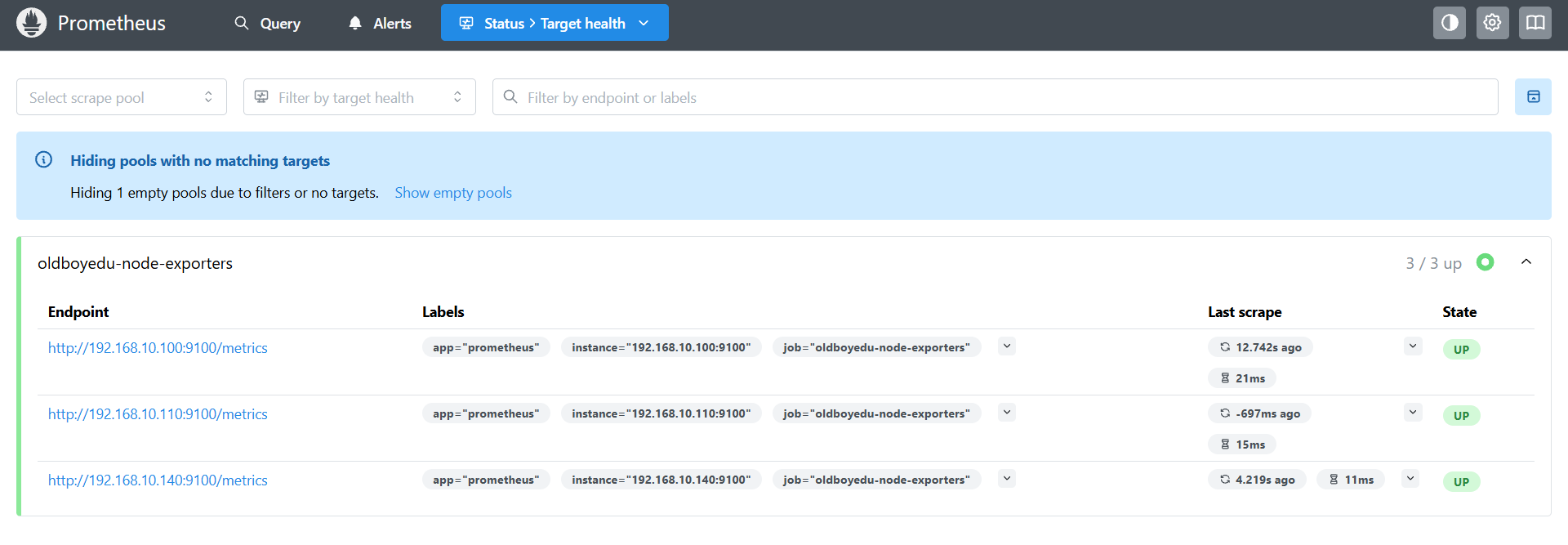
由图可知监控显示正常!!!!
评论